Resize Modes
Understanding FIT, FILL, STRETCH, and NO RESIZE modes with visual examples and use cases
Prefer to watch? 🎥
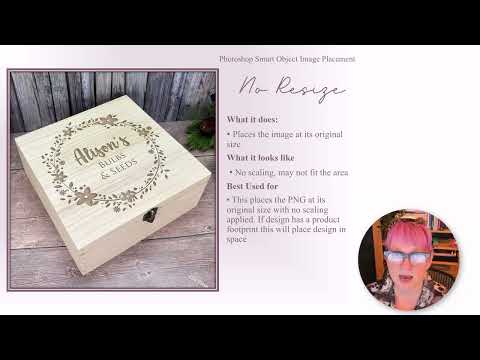
This video explains the four resize modes — Fit, Fill, Stretch, and No Resize — with visual examples of each.
(Opens on YouTube in a new tab.)
Understanding How Designs Fit Templates
Resize modes control how your PNG design fits into the smart object area of your PSD template. Choosing the right mode ensures your designs look professional and undistorted in your mockups.
5.1 What Are Resize Modes?
The Challenge: Your PNG designs and PSD template smart objects rarely have identical dimensions. A square logo (1000×1000px) needs to fit into a rectangular coaster template (1200×800px smart object area).
The Solution: Resize modes tell the plugin how to handle the size difference between your design and the template's smart object bounds.
Four Options:
- Fit – Scales design to fit entirely inside (may leave empty space)
- Fill – Scales design to fill entire area (may crop edges)
- Stretch (ignore aspect ratio) – Stretches design to fill exactly (may distort)
- No Resize – Places design at original size (may overflow or be too small)
5.2 Visual Guide to Resize Modes
Example Scenario:
- Design: Square logo (1000×1000px, aspect ratio 1:1)
- Template Smart Object: Rectangular area (1200×800px, aspect ratio 3:2)
Mode 1: FIT
What it does:
- Scales design to fit entirely within the smart object bounds
- Maintains aspect ratio (no distortion)
- May leave empty space on sides or top/bottom
When to use:
- Design aspect ratio doesn't match template
- You want to preserve design proportions exactly
- Empty space is acceptable (or will be filled by background)
Visual Result:
┌─────────────────────────┐
│       ┌─────────┐       │
│       │         │       │
│       │  LOGO   │       │  ← whole design visible
│       │         │       │
│       └─────────┘       │
└─────────────────────────┘
  ↑ empty         empty ↑
Example Use Cases:
- Logos that must remain proportional
- Designs with important border elements that can't be cropped
- Templates with decorative backgrounds where empty space blends in
💡 Pro Tip: Use FIT when your design's aspect ratio is significantly different from the template, and you can't afford any distortion.
Mode 2: FILL
What it does:
- Scales design to completely fill the smart object bounds
- Maintains aspect ratio (no distortion)
- May crop edges of design to fill space
When to use:
- Design aspect ratio is close to template (but not exact)
- You want no empty space
- Edges of design can be cropped without losing important elements
Visual Result:
   ┌ ─ ─ ─ ─ ─ ─ ─ ─ ─ ─ ┐   ← cropped off
┌─────────────────────────┐
│                         │
│         LOGO            │  ← design fills the whole area
│                         │
└─────────────────────────┘
   └ ─ ─ ─ ─ ─ ─ ─ ─ ─ ─ ┘   ← cropped off
In this example the design is square and the smart object is wider than it is tall, so the design scales to the width and the top and bottom are cropped. If the smart object were taller than it is wide, the sides would crop instead.
Example Use Cases:
- Background patterns that can be cropped
- Designs with centred focal points (edges less important)
- Full-bleed artwork
⚠️ Warning: Important design elements near edges may be cropped. Test first!
Mode 3: STRETCH (ignore aspect ratio)
What it does:
- Stretches design to exactly match smart object dimensions
- Ignores aspect ratio (may distort)
- No empty space, no cropping
When to use:
- Design is already created to match template dimensions
- You've intentionally designed for this specific template
- Design is abstract/pattern-based (distortion not noticeable)
Visual Result:
┌─────────────────────────┐
│                         │
│      L  O  G  O         │  ← stretched to fill exactly
│                         │
└─────────────────────────┘
Example Use Cases:
- Designs created specifically for each template's dimensions
- Text-based designs where slight stretching is acceptable
- Abstract patterns where distortion isn't noticeable
💡 Pro Tip: This is the most commonly used mode when you design PNGs specifically for your templates. Create designs that match your template aspect ratios, then use STRETCH for perfect placement. See 5.4 for the transparent footprint workflow that makes this effortless.
Mode 4: NO RESIZE
What it does:
- Places design at original pixel dimensions
- No scaling, no distortion
- May overflow or be too small for smart object area
When to use:
- Design is already the exact size needed
- You need pixel-perfect placement
- You're using high-resolution designs for large-format printing
Visual Result (design too large):
   ┌ ─ ─ ─ ─ ─ ─ ─ ─ ─ ─ ┐   ← overflows, not visible
┌─────────────────────────┐
│                         │
│         LOGO            │  ← only the centre shows
│                         │
└─────────────────────────┘
   └ ─ ─ ─ ─ ─ ─ ─ ─ ─ ─ ┘   ← overflows, not visible
Visual Result (design too small):
┌─────────────────────────┐
│                         │
│         ┌────┐          │
│         │LOGO│          │  ← design too small for the area
│         └────┘          │
│                         │
└─────────────────────────┘
Example Use Cases:
- Pixel-perfect mockups for print production
- Designs pre-sized to exact template dimensions
- Advanced workflows with precise dimension control
⚠️ Warning: Only use this mode if you know the exact pixel dimensions of your template's smart object area.
5.3 Choosing the Right Resize Mode
Quick Decision Guide
Ask yourself these questions:
-
Did I create my design to match this template's dimensions?
- ✅ Yes → Use STRETCH
- ❌ No → Continue to question 2
-
Is my design's aspect ratio similar to the template?
- ✅ Yes (within 10%) → Use STRETCH or FILL
- ❌ No (significantly different) → Continue to question 3
-
Can I afford empty space in the mockup?
- ✅ Yes → Use FIT
- ❌ No → Use FILL (accept edge cropping)
-
Do I need pixel-perfect placement?
- ✅ Yes → Use NO RESIZE (advanced users only)
Resize Mode Comparison Table
| Mode | Aspect ratio | Empty space? | Cropping? | Distortion? | Best for |
|---|---|---|---|---|---|
| Fit | Maintained | Possible | No | No | Logos and designs with important borders |
| Fill | Maintained | No | Possible | No | Patterns and full-bleed artwork |
| Stretch | Ignored | No | No | Possible | Designs made to match the template |
| No Resize | Maintained | Possible | Possible | No | Designs already at the exact pixel size |
5.4 Understanding Aspect Ratios
What Is Aspect Ratio?
Aspect ratio is the relationship between width and height of an image.
Common aspect ratios:
- 1:1 (Square) – 1000×1000px, 2000×2000px
- 4:3 (Standard) – 1200×900px, 2400×1800px
- 16:9 (Widescreen) – 1920×1080px, 3840×2160px
- 3:2 (Photo) – 1500×1000px, 3000×2000px
Why it matters: When your design's aspect ratio doesn't match the template's smart object aspect ratio, you'll need to choose between:
- Empty space (FIT mode)
- Cropping (FILL mode)
- Distortion (STRETCH mode)
How to Check Aspect Ratio
For your PNG designs:
- Right-click the PNG file
- Select "Properties" (Windows) or "Get Info" (Mac)
- Note the dimensions (e.g., 2000×1500px)
- Calculate ratio: 2000 ÷ 1500 = 1.33 (approximately 4:3)
For your PSD template smart objects:
- Open the PSD in Photoshop
- Select the smart object layer
- Check the Transform panel for dimensions
- Calculate ratio: width ÷ height
The Transparent Footprint Workflow
There's a shortcut that removes aspect ratio guesswork entirely — and most makers already have it built into their files.
A transparent footprint means your design sits inside a transparent canvas matching the exact shape and proportions of your product's print area. When you export designs from your production files — the same files you send to your laser or printer — that footprint is already there. The design is positioned correctly within a canvas representing the printable area.
Why it works so well:
- Your production file canvas matches your product's print area
- The smart object in your mockup also represents the print area
- STRETCH mode makes your canvas fill the smart object exactly
- Result: your design appears exactly where it will on the real product
✅ This is our recommended workflow: export PNGs from your production files → use STRETCH mode → perfect placement every time, across every template.
Matching Aspect Ratios
Best Practice: If you're not exporting from production files, create your PNG designs to match your template's smart object aspect ratio.
Example:
- Template smart object: 1200×800px (aspect ratio 3:2)
- Create designs at: 3000×2000px (same 3:2 ratio, higher resolution)
- Use STRETCH mode for perfect placement
💡 Pro Tip: Create design templates in your graphic design software (Corel, Canva, Illustrator, etc.) with the correct aspect ratios. Save them as presets for quick access.
5.5 Common Aspect Ratio Scenarios
Scenario 1: Square Design on Rectangular Template
Setup:
- Design: 2000×2000px (1:1 square)
- Template: 1500×1000px (3:2 rectangle)
Options:
FIT Mode:
- Design scales to 1000×1000px (fits height)
- 250px empty space on left and right
- ✅ No distortion
- ⚠️ Empty space visible
FILL Mode:
- Design scales to 1500×1500px (fills width)
- Top and bottom 250px cropped
- ✅ No empty space
- ⚠️ Edges cropped
STRETCH Mode:
- Design stretched to 1500×1000px
- ✅ No empty space, no cropping
- ⚠️ Design appears wider/flatter
Recommendation: Use FIT if logo/text must stay proportional, or FILL if edges can be cropped.
Scenario 2: Rectangular Design on Square Template
Setup:
- Design: 3000×2000px (3:2 rectangle)
- Template: 1500×1500px (1:1 square)
Options:
FIT Mode:
- Design scales to 1500×1000px (fits width)
- 250px empty space on top and bottom
- ✅ No distortion
- ⚠️ Empty space visible
FILL Mode:
- Design scales to 2250×1500px (fills height)
- Left and right 375px cropped
- ✅ No empty space
- ⚠️ Edges cropped
STRETCH Mode:
- Design stretched to 1500×1500px
- ✅ No empty space, no cropping
- ⚠️ Design appears taller/narrower
Recommendation: Use FILL if centred content is most important, or FIT if full design must be visible.
Scenario 3: Matching Aspect Ratios
Setup:
- Design: 3000×2000px (3:2 rectangle)
- Template: 1500×1000px (3:2 rectangle)
Options:
FIT, FILL, or STRETCH Mode:
- All three modes produce identical results
- Design scales to 1500×1000px
- ✅ Perfect fit, no distortion, no cropping, no empty space
Recommendation: Use STRETCH (standard choice when ratios match).
💡 Pro Tip: This is the ideal scenario! Always try to match your design aspect ratios to your templates.
5.6 Real-World Examples by Product Type
Wooden Coasters (Typically Square)
Template Smart Object: 1000×1000px (1:1)
Recommended Workflow:
- Create designs at 2000×2000px (1:1 square)
- Use STRETCH mode
- Result: Perfect fit, no distortion
If using non-square designs:
- Use FIT for logos that must stay proportional
- Use FILL for background patterns
Wooden Plaques (Typically Rectangular)
Template Smart Object: 1500×1000px (3:2)
Recommended Workflow:
- Create designs at 3000×2000px (3:2 rectangle)
- Use STRETCH mode
- Result: Perfect fit, no distortion
If using square designs:
- Use FIT if empty space is acceptable
- Use FILL if edges can be cropped
Wine Glasses (Typically Tall/Narrow)
Template Smart Object: 800×1200px (2:3 portrait)
Recommended Workflow:
- Create designs at 1600×2400px (2:3 portrait)
- Use STRETCH mode
- Result: Perfect fit, no distortion
If using square designs:
- Use FILL (sides will be cropped)
- Avoid FIT (too much empty space on top and bottom)
Chopping Boards (Typically Wide Rectangle)
Template Smart Object: 2000×1000px (2:1 wide)
Recommended Workflow:
- Create designs at 4000×2000px (2:1 wide)
- Use STRETCH mode
- Result: Perfect fit, no distortion
If using square designs:
- Use FIT (empty space on left/right)
- Use FILL (top/bottom cropped)
5.7 Testing Resize Modes
Create a Test Batch
Best Practice: Before processing hundreds of mockups, test all four resize modes with a single design and template.
Step-by-Step:
- Select one PSD template (e.g., WoodenCoaster.psd)
- Select one PNG design (e.g., Square-Wood.png)
- Create four output folders:
- Test-Fit/
- Test-Fill/
- Test-Stretch/
- Test-NoResize/
- Process four separate batches:
- Batch 1: Resize Mode = FIT → Output to Test-Fit/
- Batch 2: Resize Mode = FILL → Output to Test-Fill/
- Batch 3: Resize Mode = STRETCH → Output to Test-Stretch/
- Batch 4: Resize Mode = NO RESIZE → Output to Test-NoResize/
- Compare results side-by-side
💡 Pro Tip: Save these test mockups as a reference library. Label each with the resize mode used.
5.8 Advanced Tips & Tricks
Tip 1: Create Design Presets by Aspect Ratio
In your design software (Canva, Illustrator, Photoshop), create canvas presets for common aspect ratios:
Preset Library:
- Square (1:1): 2000×2000px
- Standard Rectangle (3:2): 3000×2000px
- Wide Rectangle (2:1): 4000×2000px
- Portrait (2:3): 1600×2400px
Save these as templates for quick access when creating new designs.
Tip 2: Use Safe Zones for FILL Mode
If using FILL mode (which crops edges), create a "safe zone" in your designs:
Example:
- Canvas: 3000×2000px
- Safe zone: 2400×1600px (centred)
- Keep all important elements (text, logos) inside safe zone
- Allow decorative elements to extend to edges
This ensures important content is never cropped.
Tip 3: Organise PNGs by Aspect Ratio
Structure your Designs folder by aspect ratio:
Designs/
├── Square-1-1/
│   ├── Square-Wood.png
│   └── Square-Print.png
├── Rectangle-3-2/
│   ├── Rectangle-Wood.png
│   └── Rectangle-Print.png
└── Portrait-2-3/
    └── Portrait-Glass.png
This makes it easy to batch process designs with matching templates.
Tip 4: Use Consistent Resolution
Recommended: Create all designs at 300 DPI (high resolution).
Why?
- Ensures sharp, professional mockups
- Works for both web and print use
- Scales cleanly in all resize modes
Example dimensions at 300 DPI:
- Square: 2000×2000px (6.67″ × 6.67″)
- Rectangle (3:2): 3000×2000px (10″ × 6.67″)
- Portrait (2:3): 1600×2400px (5.33″ × 8″)
Tip 5: Document Your Template Dimensions
Create a reference document listing each template's smart object dimensions:
Example:
WoodenCoaster.psd  → 1000×1000px (1:1)  → Use Square designs + STRETCH
WoodenPlaque.psd   → 1500×1000px (3:2)  → Use Rectangle designs + STRETCH
WineGlass.psd      → 800×1200px (2:3)   → Use Portrait designs + STRETCH
ChoppingBoard.psd  → 2000×1000px (2:1)  → Use Wide designs + STRETCH
Keep this handy for quick reference when creating new designs.
5.9 Troubleshooting Resize Issues
Problem: Design looks stretched or squashed
Cause: Using STRETCH mode with mismatched aspect ratios
Solutions:
- Switch to FIT or FILL mode
- Recreate design to match template aspect ratio
- Export designs from your production files so they carry the correct transparent footprint
Problem: Empty space around design
Cause: Using FIT mode with mismatched aspect ratios
Solutions:
- Switch to FILL mode (accept edge cropping)
- Switch to STRETCH mode (accept distortion)
- Recreate design to match template aspect ratio
- Use a template with decorative background (empty space blends in)
Problem: Important elements are cropped
Cause: Using FILL mode with important content near edges
Solutions:
- Switch to FIT mode (accept empty space)
- Redesign with safe zones (keep important elements centred)
- Use a template with larger smart object area
Problem: Design is too small or overflows
Cause: Using NO RESIZE mode with incorrect dimensions
Solutions:
- Switch to FIT, FILL, or STRETCH mode
- Recreate design at exact template dimensions
- Check template smart object dimensions and match exactly
Problem: Text looks distorted
Cause: Using STRETCH mode with text-heavy designs and mismatched ratios
Solutions:
- Switch to FIT mode (preserves text proportions)
- Recreate design with text at correct aspect ratio
- Use vector-based text that can be stretched without quality loss
5.10 Resize Mode Recommendations by Use Case
For Logo-Based Designs
Recommended: FIT mode
- Preserves logo proportions exactly
- Maintains brand integrity
- Empty space is acceptable
For Full-Bleed Artwork
Recommended: FILL mode
- No empty space
- Edge cropping is acceptable
- Centred focal points remain visible
For Designs Created for Specific Templates
Recommended: STRETCH mode
- Perfect fit
- No distortion (ratios already match)
- Most efficient workflow
For Pixel-Perfect Production Mockups
Recommended: NO RESIZE mode
- Exact dimensions
- No scaling artifacts
- Requires precise design dimensions
For Text-Heavy Designs
Recommended: FIT or STRETCH (with matching ratios)
- Avoids text distortion
- Maintains readability
- Avoid FILL (may crop text)
For Abstract Patterns
Recommended: FILL or STRETCH
- Distortion less noticeable
- No empty space
- Fills template completely
5.11 Quick Reference: Resize Mode Cheat Sheet
When to Use Each Mode
| If this is you... | Use |
|---|---|
| You've exported designs from your production files with a transparent footprint | Stretch ⭐ |
| Your design and template aspect ratios already match | Stretch |
| Your design must stay proportional, and empty space is fine | Fit |
| You need edge-to-edge coverage and can afford to lose the edges | Fill |
| Your PNG is already the exact pixel size of the smart object | No Resize |
| You're not sure | Stretch — then test a small batch and compare |
5.12 Next Steps
Now that you understand resize modes, you're ready to:
- ✅ Create designs with correct aspect ratios
- ✅ Choose the right resize mode for each batch
- ✅ Avoid distortion, cropping, and empty space issues
- ✅ Generate professional, polished mockups
Continue to:
- Section 6: Multiple Smart Objects - Build richer mockups with several placements in one image
- Section 7: Processing Types - Learn about engraving and print effects (Print & Sublimation and Professional Plans)
- Section 8: Output Files - Understand file naming and organisation
- Section 9: Troubleshooting Guide - Fix common resize issues
Happy mockup creating! The Mockup Factory Team