Processing Types
Guide to substrate selection, effect application, and choosing the right processing type
Realistic Engraving & Print Effects (Print & Sublimation and Professional Plan Features)
Processing types transform your flat PNG designs into realistic, production-accurate mockups that match your actual engraving or printing methods. Print effects are available on the Print & Sublimation and Professional plans. Engraving effects are exclusive to the Professional plan.
7.1 What Are Processing Types?
The Challenge: A flat PNG design doesn't show how it will look when laser engraved on wood, UV printed on glass, or sublimation printed on ceramic. Customers need to see realistic mockups that match your production quality.
The Solution: Processing types apply sophisticated effects that simulate real production methods, including:
- Material texture and depth
- Engraving burn marks and highlights
- Print opacity and substrate interaction
- Realistic shadows and lighting
The Three Processing Types
The Processing Type menu is the first choice you make, and what appears beneath it depends on what you pick:
- No Effects (Design Placement Only) — all plans. Nothing further appears.
- Engraving Effects — Professional plan. Reveals Substrate Type, then Effect Setting.
- Print UV / Sublimation — Print & Sublimation plan and above. Reveals a Print Type menu.
7.2 No Effects (Available on All Plans)
What It Does
Places your design flat onto the template with no effects applied.
Visual Result:
- Clean, flat design placement
- No texture, depth, or material interaction
- Perfect alignment, preserving the perspective of the template
- Professional mockup, but not production-realistic
When to Use
- Standard Plan users (only option available)
- Quick mockups for design approval before production
- Digital products (no physical production)
- Templates where effects aren't needed (e.g., flat print products)
Example Use Cases
- Design proofing and client approval
- Testing design placement and sizing
- Digital mockups for social media graphics
- Products without texture effects (stickers, flat prints)
💡 Pro Tip: Even without effects, No Effects mode still places every design automatically and preserves the template's perspective—saving hours of manual Photoshop work.
💡 Note: This is also the only mode that allows layered PSD output. PSD export is disabled when an effect is applied.
7.3 How Processing Types Work
Advanced Effect Technology
Each processing type uses proprietary layering technology to create realistic depth and texture that matches real production methods.
What Makes It Realistic:
- Multiple layers work together to simulate material interaction
- Each setting adjusts depth, texture, opacity, and tone differently
- Effects are calibrated to match real laser engraving and printing results
- Substrate characteristics (wood grain, stone texture, glass frost) are preserved
Why Multiple Settings:
- Every laser has different power settings
- Every printer has different opacity and colour profiles
- Every material batch varies slightly (wood tone, slate texture, etc.)
- Your production equipment is unique to you
- You must test settings to find your perfect match.
💡 Pro Tip: Think of settings as intensity levels—each one produces a different depth, burn, or opacity to match various equipment and materials.
7.4 Print UV / Sublimation (Print & Sublimation and Professional Plans)
Prefer to watch? 🎥
This video demonstrates the print effects — sublimation and UV — and how they render on different substrates.
(Opens on YouTube in a new tab.)
Selecting Print UV / Sublimation reveals a single Print Type menu with six settings. Pick the one that matches your printing method and substrate.
Setting 1 — Sublimation
What It Simulates: Dye sublimation printing on hard white substrates
Visual Characteristics:
- Smooth, embedded print appearance
- Vibrant colours
- No texture or raised surface
- Any white in your design comes from the white substrate itself, not printed ink
- Professional print finish
When to Use:
- Ceramic mugs, tiles and moneyboxes
- White glass
- Stainless steel and other hard white surfaces
- Any sublimation-printed product
Setting 2 — UV Print on White
What It Simulates: UV printing on white or light-coloured materials
Visual Characteristics:
- Slight texture/raised appearance
- Vibrant, saturated colours
- Clean white background interaction
- White areas of your design are shown by the white substrate underneath, giving a clean, natural white
- Professional UV print finish
When to Use:
- White acrylic signs and awards
- White-coated metal products
- White ceramic tiles
- White lacquered wood
- Any UV-printed white substrate
Settings 3–6 — UV Print on Wood
What It Simulates: UV printing directly on natural wood substrates
All four let the wood grain show through. The key difference is how each handles white in your design:
| Setting | Name | Best for | White in your design |
|---|---|---|---|
| 3 | UV Print on Wood 1 | Bolder, fuller coverage | Not printed — shows as bare wood |
| 4 | UV Print on Wood 2 | A softer look, more grain showing | Not printed — shows as bare wood |
| 5 | UV Print on Wood 3 | Designs with white you need to keep | Printed and preserved |
| 6 | UV Print on Wood 4 | White detail with bolder colour | Printed and preserved |
Visual Characteristics:
- Wood grain visible through print
- Natural wood tone blending with design colours
- Realistic wood texture interaction
- Professional UV-on-wood appearance
When to Use:
- Natural wood signs and plaques
- Bamboo products with UV print
- Any direct-to-wood UV printing
💡 Pro Tip: The white question is the decision that matters on wood. If your design contains white that must stay visible, use Wood 3 or Wood 4. With Wood 1 and Wood 2 those areas fall back to bare wood — which looks great for grain-led designs, but loses any intentional white detail.
7.5 Engraving Effects (Professional Plan Only)
Prefer to watch? 🎥
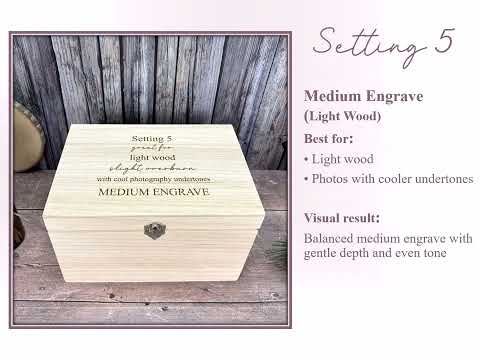
This video demonstrates the engraving effects — wood, slate, and glass — and how the settings change the result.
(Opens on YouTube in a new tab.)
Selecting Engraving Effects reveals a Substrate Type menu — Slate, Wood, Glass, or Leather — and then an Effect Setting menu with the presets for that substrate.
Wood Engraving
What It Simulates: Laser engraving on wood substrates (maple, oak, walnut, bamboo, acacia, etc.)
Available Settings: 10
Each setting applies a different engrave depth and amount of overburn, and suits different wood tones and photography lighting.
| Setting | Name | Best for |
|---|---|---|
| 1 | Deep Engrave Look | A large variety of woods and photos; warm undertones |
| 2 | Exaggerated Engrave | A large variety of woods and photos; natural lighting |
| 3 | Light Engrave | A large variety of woods and photos; natural lighting |
| 4 | Medium Engrave (Very Light Wood) | Very light wood; high photography exposure |
| 5 | Medium Engrave (Light Wood) | Light wood; photos with cooler undertones |
| 6 | Medium Engrave (Warm Tones) | Natural wood; warm, bright lighting |
| 7 | Medium Engrave (Cooler Tones) | A large range of woods; warm, bright lighting |
| 8 | Distinctive Outline | Very dark woods; acacia and darker materials |
| 9 | Deep Dark Engrave (All-Rounder) ⭐ | All woods and tones; natural lighting — our most versatile option |
| 10 | Deep Engrave (Cool Lighting) | All woods and tones; photos taken in cool lighting |
Visual Characteristics:
- Burn marks and charring
- Wood grain visible through design
- Depth shadows
- Natural wood tone blending
- Realistic engraving texture
When to Use:
- Wooden coasters, plaques, signs, boxes
- Bamboo cutting boards, utensils
- Wood ornaments and keychains
- Any laser-engraved wood product
💡 Pro Tip: Start with Setting 9 — it's the all-rounder and works across all woods and tones. Adjust from there based on your wood tone and photography lighting. See the Wood Engraving Effects guide for a visual example of every setting.
Slate Engraving
What It Simulates: Laser engraving on slate substrates
Available Settings: 4
Each setting gives a different level of grey in the engraved effect, from lighter to more pronounced.
Visual Characteristics:
- Texture and natural variation
- Light grey engraving against dark slate
- Natural stone imperfections
- Matte finish appearance
When to Use:
- Slate coasters and placemats
- Slate signs and house numbers
- Engraved slate cheese boards
- Memorial plaques and awards
Glass Engraving
What It Simulates: Laser engraving or sandblasting on glass substrates
Available Settings: 3
- Setting 1 – Light frost, delicate appearance
- Setting 2 – Medium frost, balanced visibility
- Setting 3 – Heavy frost, bold contrast
Visual Characteristics:
- Frosted glass effect
- Light diffusion and translucency
- Realistic glass texture
- Subtle reflections and highlights
- Etched appearance
When to Use:
- Wine glasses, beer mugs, champagne flutes
- Glass ornaments and baubles
- Engraved mirrors and frames
- Glass awards and trophies
Leather Engraving
What It Simulates: Laser engraving on leather substrates
Available Settings: 2
- Setting 1 – For coloured leather
- Setting 2 – For dark leather
Visual Characteristics:
- Engraved mark that reads against the leather's natural tone
- Surface texture preserved through the design
- Realistic depth and definition
When to Use:
- Leather journals and notebooks
- Keyrings and luggage tags
- Wallets and card holders
- Any laser-engraved leather product
7.6 How to Choose the Right Processing Type
Quick Decision Guide
Step 1: Identify Your Production Method
Ask yourself: "How will I physically produce this product?"
- Laser engraving? → Continue to Step 2
- Printing? → Continue to Step 3
- Neither / just proofing? → Use No Effects
Step 2: Choose Your Substrate (Professional Plan Required)
Select Engraving Effects, then pick what material you're engraving:
- Wood (maple, oak, bamboo, etc.) → Wood
- Slate (stone coasters, plaques) → Slate
- Glass (wine glasses, mirrors) → Glass
- Leather (journals, keyrings, wallets) → Leather
Then choose the Effect Setting based on your laser power, material tone, and desired burn/etch intensity.
Step 3: Choose Your Print Type (Print & Sublimation or Professional Plan Required)
Select Print UV / Sublimation, then pick your method and substrate:
- Sublimation on ceramic, white glass, stainless steel → Sublimation
- UV printing on white materials → UV Print on White
- UV printing on natural wood → UV Print on Wood 1–4
For wood, let your design decide: if it contains white that must stay visible, use Wood 3 or 4. Otherwise pick Wood 1 (bolder) or Wood 2 (more grain).
7.7 Testing Processing Settings
Why Testing Is Critical
Multiple settings are offered because every business has different:
- Laser power and speed settings
- Printer opacity and colour profiles
- Material suppliers and substrate variations
- Desired aesthetic (some prefer deeper burns, others prefer subtle)
The only way to know which setting matches your production is to test.
Create a Processing Test Library
Best Practice: Test all settings for each processing type you use, then save results as a reference library.
Step-by-Step:
-
Choose one design and one template
Use a design with varied elements (text, solid areas, fine details)
Select a template for a product you actually produce
-
Process with all settings for that type
-
Compare mockups to your actual production samples
-
Document your results
-
Create a reference library
💡 Pro Tip: Repeat this testing process whenever you change equipment, materials, or production settings.
7.8 Troubleshooting Processing Issues
Problem: Processing options are locked
Cause: You're on the Standard Plan (effects require Print & Sublimation or Professional Plan)
Solutions:
- Upgrade to Print & Sublimation Plan for print effects (see Section 3.8)
- Upgrade to Professional Plan for engraving effects (see Section 3.8)
- Use No Effects mode (available on Standard Plan)
Problem: Engraving options are locked but print options work
Cause: You're on the Print & Sublimation Plan (engraving effects require Professional Plan)
Solutions:
- Upgrade to Professional Plan for engraving effects
- Use print effects available on your current plan
Problem: I only see the Processing Type menu
Cause: You've selected No Effects, which has no further options
Solution: Switch to Engraving Effects or Print UV / Sublimation to reveal the substrate and setting menus.
Problem: Mockup doesn't match my actual production
Cause: Wrong processing type or setting chosen
Solutions:
- Retest all settings for that processing type
- Compare mockups side-by-side with real products
- Choose the setting that most closely matches
- Consider equipment or material changes
Problem: Effect looks too strong or too weak
Cause: Setting doesn't match your production intensity
Solutions:
- Try a different setting (e.g., switch from Setting 5 to Setting 3)
- Test all available settings for that type
Problem: White in my design disappears on wood
Cause: Using UV Print on Wood 1 or 2, which don't print white
Solution: Switch to UV Print on Wood 3 or 4 — both print and preserve white.
Problem: Wood grain doesn't show through engraving
Cause: Using the wrong processing type or No Effects mode
Solutions:
- Ensure you're using Engraving Effects with the Wood substrate
- Try a lighter setting (e.g., Setting 3 or 6)
- Verify you're on the Professional Plan
Problem: Print looks flat, not realistic
Cause: Using No Effects instead of print effects
Solutions:
- Switch to Print UV / Sublimation and pick the Print Type that matches your method
- Ensure you're on Print & Sublimation or Professional Plan
Problem: Glass engraving looks too opaque
Cause: Setting too heavy for your actual engraving depth
Solutions:
- Try Glass Setting 1 (lightest frost)
- Compare to actual engraved glass samples
Problem: I can't export a PSD
Cause: PSD output is disabled when an effect is applied
Solution: Run the batch with No Effects if you need a layered file.
7.9 Processing Type Best Practices
Do's ✅
✅ Test all settings before committing to large batches
✅ Compare mockups to real products to find your best match
✅ Document your settings for future reference
✅ Organise batches by processing type (cannot mix in one batch)
✅ Update settings when equipment or materials change
✅ Use realistic settings that match your actual production
✅ Create a reference library of test mockups
Don'ts ❌
❌ Don't guess which setting to use—always test
❌ Don't mix processing types in a single batch
❌ Don't use settings that don't match your production
❌ Don't forget to retest after equipment changes
❌ Don't overpromise with settings that look better than your actual products
❌ Don't skip testing to save time—it costs more time later
7.10 Plan Comparison: Processing Features
What Standard Plan Users Get
Available:
✅ No Effects mode
✅ Flat design placement
✅ Automatic placement, preserving the template's perspective
✅ Professional mockups for design approval
✅ Layered PSD export
Not Available:
❌ Print effects (sublimation, UV)
❌ Engraving effects (wood, slate, glass, leather)
❌ Realistic material texture and depth
❌ Production-accurate mockups
Best For:
- Design proofing and client approval
- Digital products (no physical production)
- Budget-conscious users who don't need realistic effects
What Print & Sublimation Plan Users Get
Everything in Standard, plus:
✅ All six print settings (sublimation, UV on white, UV on wood 1–4)
✅ Production-accurate mockups for printed products
Not Available:
❌ Engraving effects (wood, slate, glass, leather)
Best For:
- Sublimation printers
- UV printing businesses
- Print-on-demand sellers
- Anyone selling printed (not engraved) products
What Professional Plan Users Get
Everything in Print & Sublimation, plus:
✅ All engraving effects (wood, slate, glass, leather)
✅ Multiple settings per substrate
✅ Complete effect library for all production methods
✅ Production-accurate mockups for both printed AND engraved products
Best For:
- Laser engravers and makers selling physical products
- Businesses that offer both engraving AND printing
- Professional sellers who want production-accurate previews
- Anyone who wants to reduce "doesn't match the picture" complaints
7.11 Next Steps
Now that you understand processing types, you're ready to:
✅ Choose the correct processing type for your production method
✅ Test settings to match your actual equipment and materials
✅ Generate realistic, production-accurate mockups
✅ Build customer confidence with professional previews
Continue to:
- Section 8: Output Files – Understand file naming, organisation, and quality
- Section 9: Troubleshooting Guide – Fix common processing issues
- Section 10: FAQ – Frequently asked questions
Happy mockup creating! The Mockup Factory Team